Move from Mailchimp to Mailkomet
Export your audience from Mailchimp, then import the file into Mailkomet as Mailchimp gives it to you. The importer reads the ZIP, matches the columns and keeps your unsubscribes. You do every step yourself, in your own account.
Updated 17 November 2026.
1. Export your audience from Mailchimp
In Mailchimp, click Audience. If you have more than one audience, pick it in the Audience drop-down. Click Export audience, then Export CSV. Only an Owner or Admin of the Mailchimp account can do this. [1]
Mailchimp emails you when the export is ready. You can also download it later from Audience, More options, Export history, for 30 days. [1]
The export can be a ZIP file with one CSV file for each type of contact: subscribed, unsubscribed, non-subscribed and cleaned. [1] Keep the ZIP as it is: you don't need to open it.
The export has your audience fields, tags, notes and the sign-up and confirmation times. It does not have opens, clicks or purchase history. [1] Save copies of past campaigns you want to keep before you close the Mailchimp account.
2. Import the ZIP into Mailkomet
Create your Mailkomet account and your newsletter. Open Contacts, then Import. Under "Where is your list now?" pick Mailchimp, then pick the ZIP file, or all the CSV files at once.
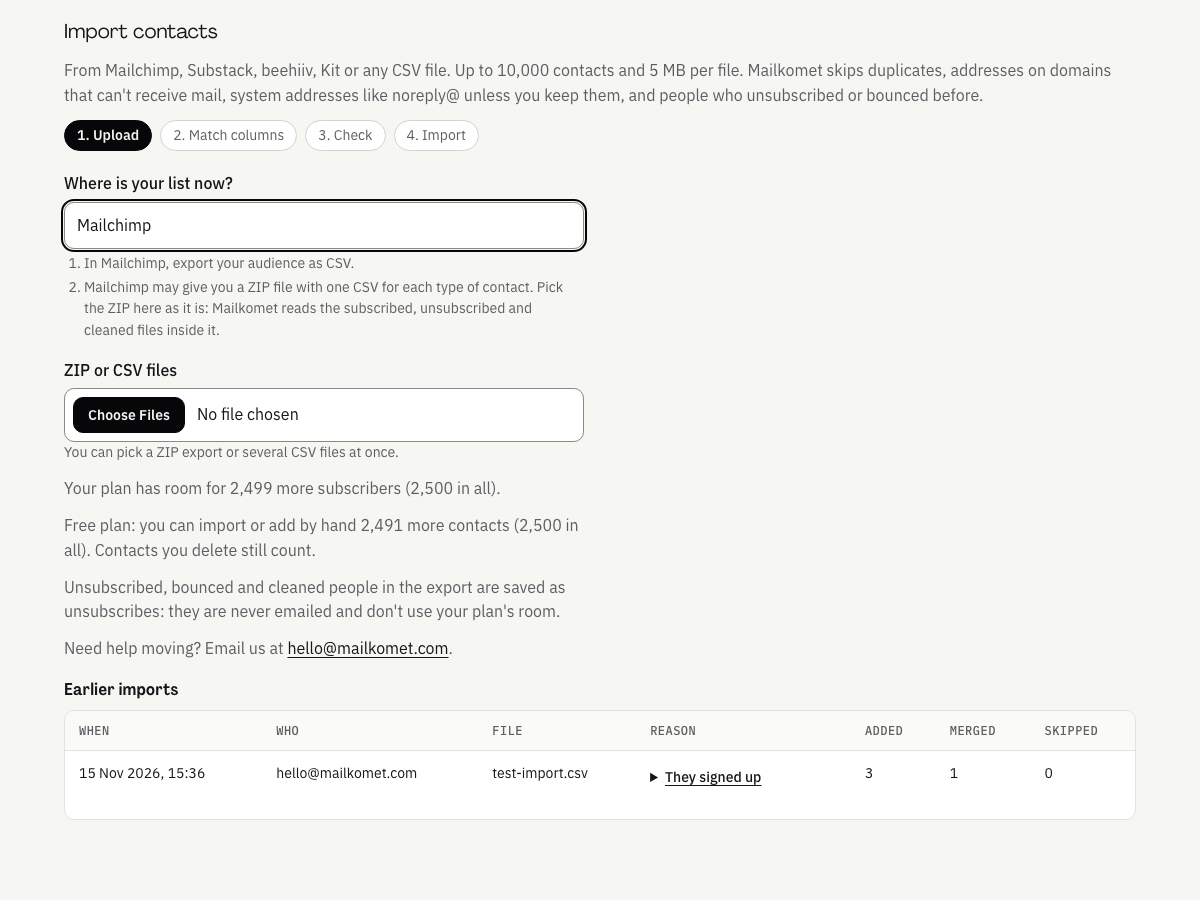
One import takes up to 10,000 contacts, from files of up to 5 MB each (up to 10 files, 30,000 rows in all, counting unsubscribes). A bigger list goes in as several imports.
3. Check how the columns are matched
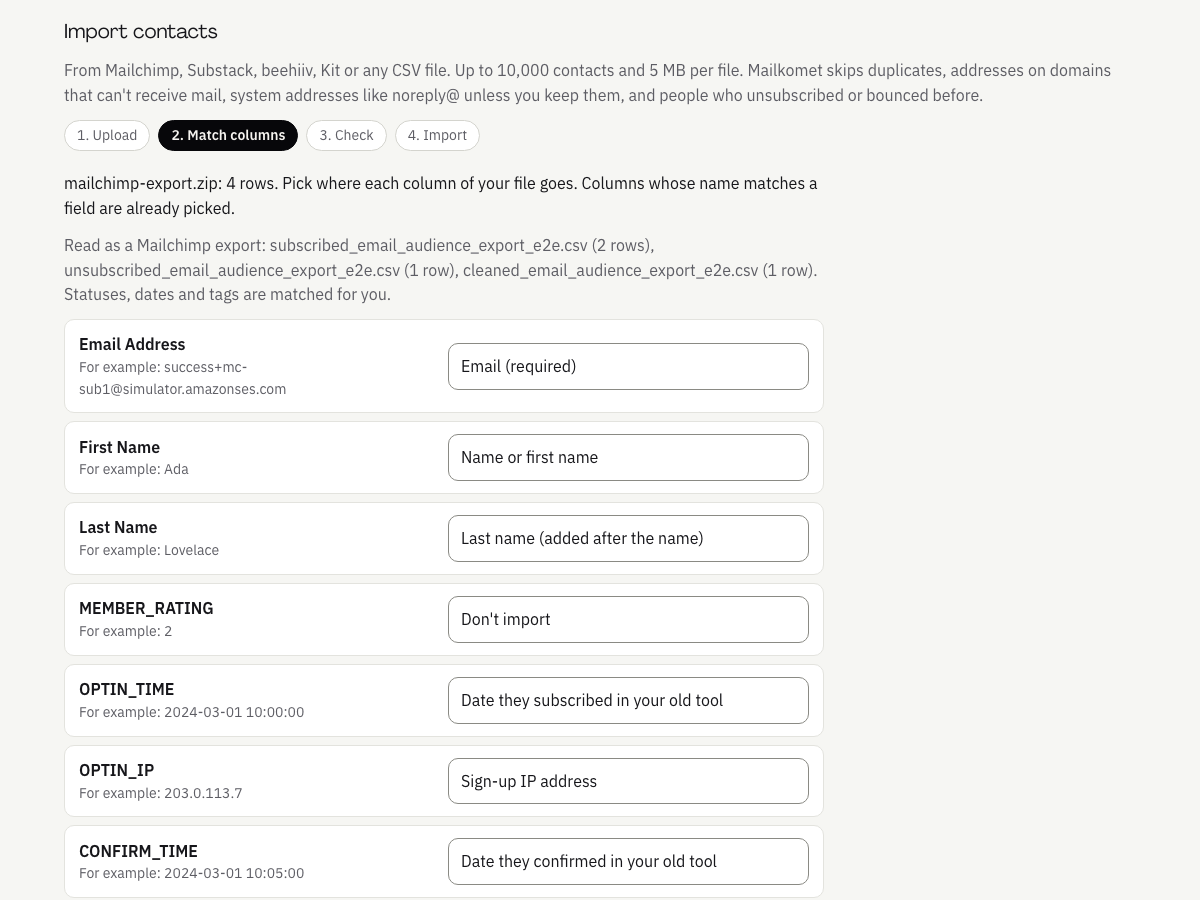
Mailkomet matches Mailchimp's columns for you. You can change any of them, or choose Don't import.
| Mailchimp column | In Mailkomet |
|---|---|
| Email Address | |
| First Name and Last Name | Name, as one name |
| TAGS | Tags |
| NOTES | Notes |
| OPTIN_TIME and CONFIRM_TIME | Kept on the contact's consent record, as the dates they subscribed and confirmed in Mailchimp |
| OPTIN_IP and CONFIRM_IP | Kept on the consent record as a keyed hash, not as the address itself |
| Other audience fields (a birthday, a city) | A custom contact field you pick or create, or not imported |
| The file each person is in (subscribed, unsubscribed, cleaned, non-subscribed) | Their status: see the next step |
Mailkomet also offers a tag for every contact of the import, "From Mailchimp". Keep it, change it or clear it.
4. Unsubscribes and bounces stay do-not-send
Mailkomet reads each file's type from its name in the ZIP:
- Subscribed: imported as contacts.
- Unsubscribed and cleaned: saved as unsubscribes. They are never emailed and don't count toward your plan.
- Non-subscribed: left out.
- If a person is in the file twice, or in two files, the unsubscribe wins.
5. Check the list and confirm consent
The Check step shows how many contacts will be added, how many are already in your list, and why any rows are left out: duplicates, addresses on domains that can't receive mail, and the statuses above. Then you say why you can email these people and confirm that they agreed to get your emails. Mailkomet keeps that confirmation with the import.
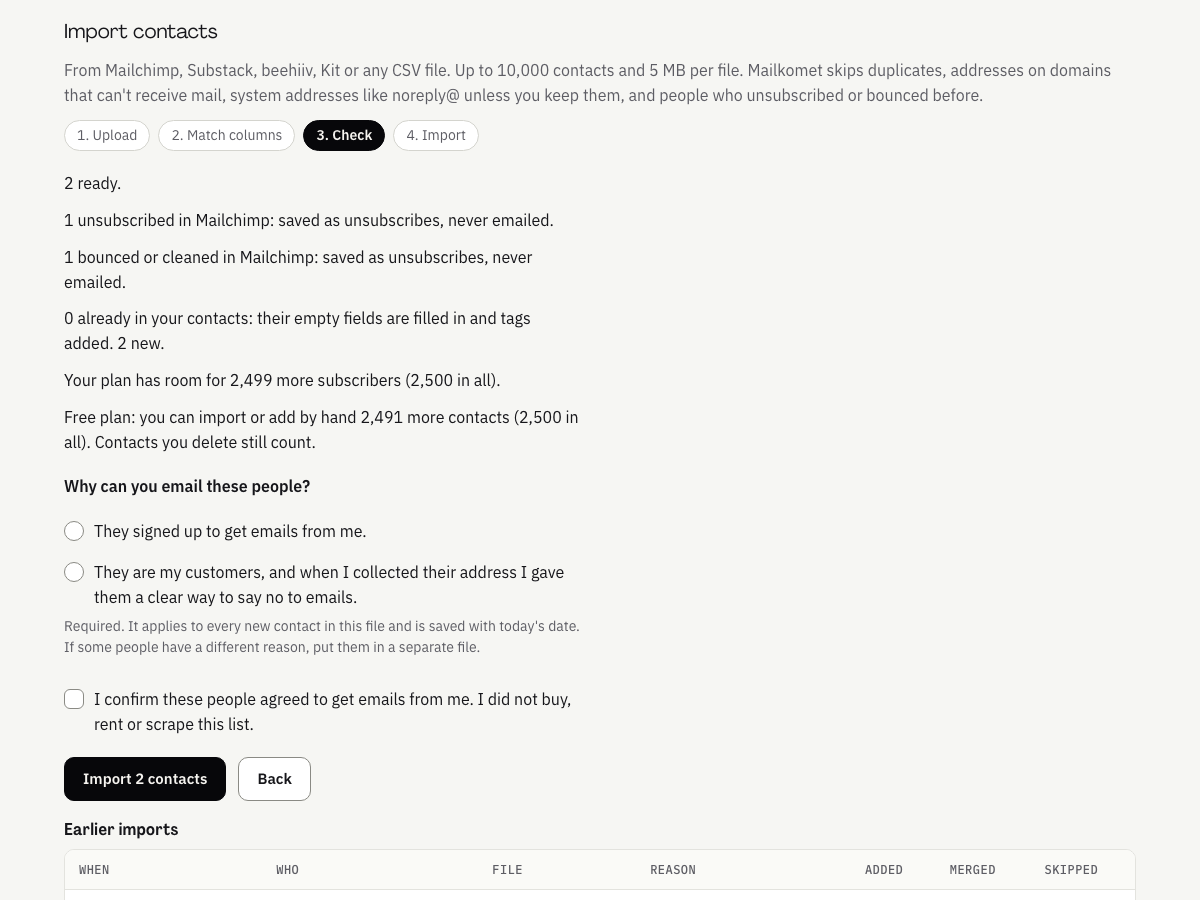
On the Free plan you can import up to 2,500 contacts, the same as its subscriber limit. Each import needs your confirmation that these people agreed to get your emails, and addresses that can't receive mail are left out. Contacts you import or add by hand count towards the 2,500 even after you delete them. People who join through your sign-up page don't count.
What does not move
- Automations and customer journeys: rebuild them in Mailkomet as automations.
- Templates and designs: rebuild them in the editor. You can also import an email's HTML as a new issue and send it from Mailkomet.
- Past campaigns and their stats (opens, clicks): they stay in Mailchimp.
- Sign-up forms: replace each Mailchimp form or link with your Mailkomet sign-up page or form.
6. After the import
Replace your sign-up forms, so new sign-ups go to the new list. How to add a sign-up form to your website shows how.
Write your welcome email. Then send your first issue: tell readers that the newsletter has moved and keep the same From name. Send yourself a test first.
Your open rate may look lower than in Mailchimp because Mailkomet does not count Apple Mail's automatic image loads as opens. What a newsletter open rate means explains it.
Questions while you move? Email hello@mailkomet.com.
Price
Founding price: the first 100 accounts that start a paid plan keep the price they pay for as long as they stay subscribed. Changing plan uses the price list of that day, and cancelling ends it. See pricing.
Questions
- Will my subscribers have to sign up again?
- No. You import the people who already agreed to your newsletter, and you confirm that they agreed. They do not need to confirm again.
- Do I need to unzip Mailchimp's export?
- No. Pick the ZIP file as it is. Mailkomet reads the subscribed, unsubscribed and cleaned files inside it.
- Can I bring my Mailchimp tags?
- Yes. Mailchimp's TAGS column is matched to Tags for you.
- How does Mailkomet's price compare with Mailchimp's?
- Mailkomet and Mailchimp compared prices both at 2,500 to 50,000 subscribers, from each company's own pricing page.
Sources
- Mailchimp help: view or export contacts, checked 17 November 2026.